
I commonly block ads for people as I service their computer. Advertisements are a common vector for scams and malware to enter your life! And it is easy for me to quickly install a free browser extension on any given computer to help with that. But more and more, people ask me: What about my phone? Our tablets? Ad-blocking on mobile devices is done differently on cellphones and iPads than on personal computers. Let’s get into it:
Easy Method – Install an Ad-Blocking Browser
You can quickly add an ad-blocking browser to your phone or tablet. It is quick, easy and free, as long as you know what to download. Here are some solid options:
Brave Browser, for Android and iOS
AdblockPlus Browser for Android
Opera Browser, for Android and iOS
Trying out an ad-blocking browser is best for its simplicity and safety. These apps don’t introduce any great change. You can always go back to your previous browser, or use both for comparison.
Advanced Method – Setup Ad-Blocking DNS
This is where it gets a little dicey. If you feel you are a basic computer user or are faint-of-heart, you’ll want to skip this tactic. But if you press on with this, you may succeed in blocking ads on your mobile device , no matter what app you are using!
DNS stands for Domain Name Server. Every time your tech device reaches out to the internet, it is getting its information through some domain name server. And your device can be programmed to route all of its traffic through a specific DNS. There are many to choose from, and some domain name servers specialize in blocking ads for all of their web traffic.
I like to focus on free offerings, so these no-cost options are worth looking into:
Adblock Plus for iPhone (sorry, Android users!)
AdGuard DNS (configured manually, the app costs you after 2 weeks)
I offer these with a whole bunch of caveats:
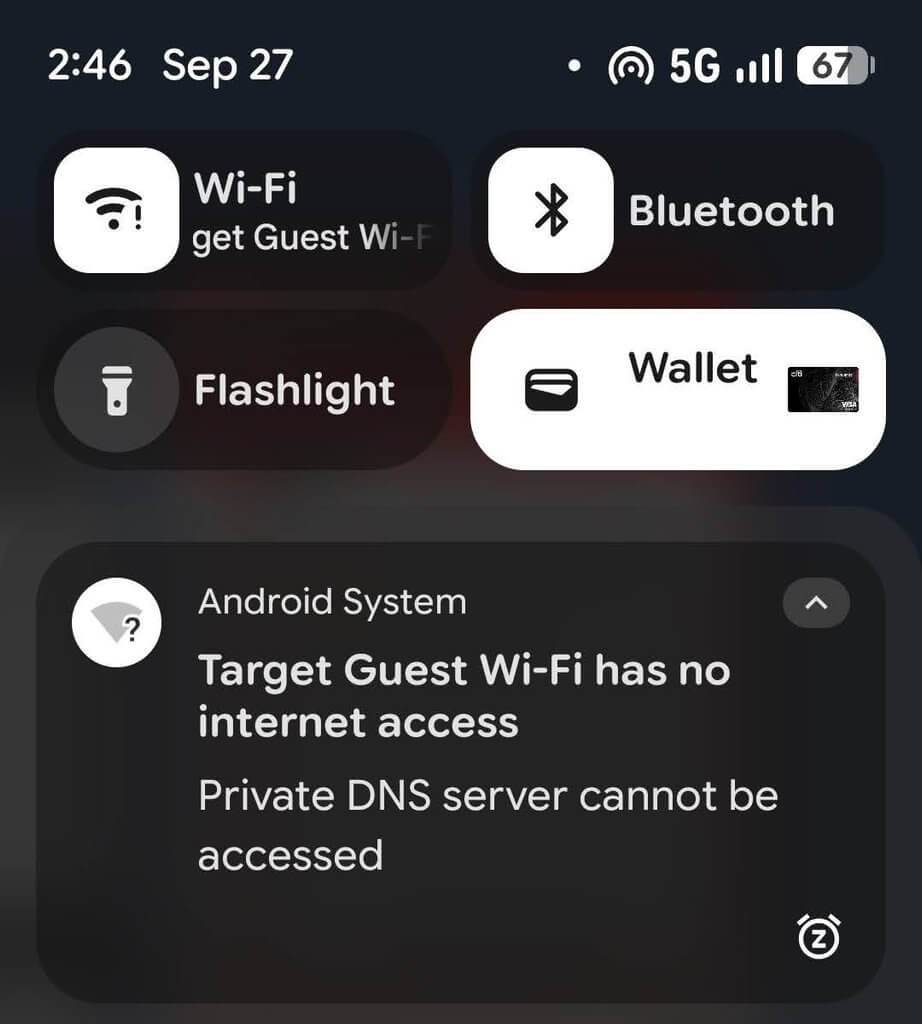
- The setup for each varies, but can have several steps, where you change the DNS settings on your Android or iOS device. If you make any small error in setup, your device’s internet connection may stop working. Be prepared to correct minute spelling and syntax mistakes and follow instructions to a T!
- If you set up ad-blocking DNS successfully, there is a chance that your device could run slower or show unexpected errors. With any adverse effects, you can either cope & understand, or reverse/remove the DNS changes.
- If you are unable to reverse DNS changes on a mobile device, I may be limited in how much I can help. You might have to contact your cellular provider for thorough tech support on such an issue.
- Using anyone’s DNS means that they see your web traffic. If you have privacy concerns, you may want to avoid this. If you are using a government or employer-provided phone
If you meet with success in using ad-blocking DNS on your mobile device, then someday, you could take it further. Depending on how tech-savvy you are, you could spread that Private DNS to your computers or even your Wi-Fi router (to ad-block your entire home network)!
And a final note: there are free private DNS options that target and filter subjects other than advertisements. CleanBrowsing can be used to filter adult content from ever coming through. OpenDNS Family Shield does similar. ControlD offers filters that block a variety of things, such as social media sites and malware.