
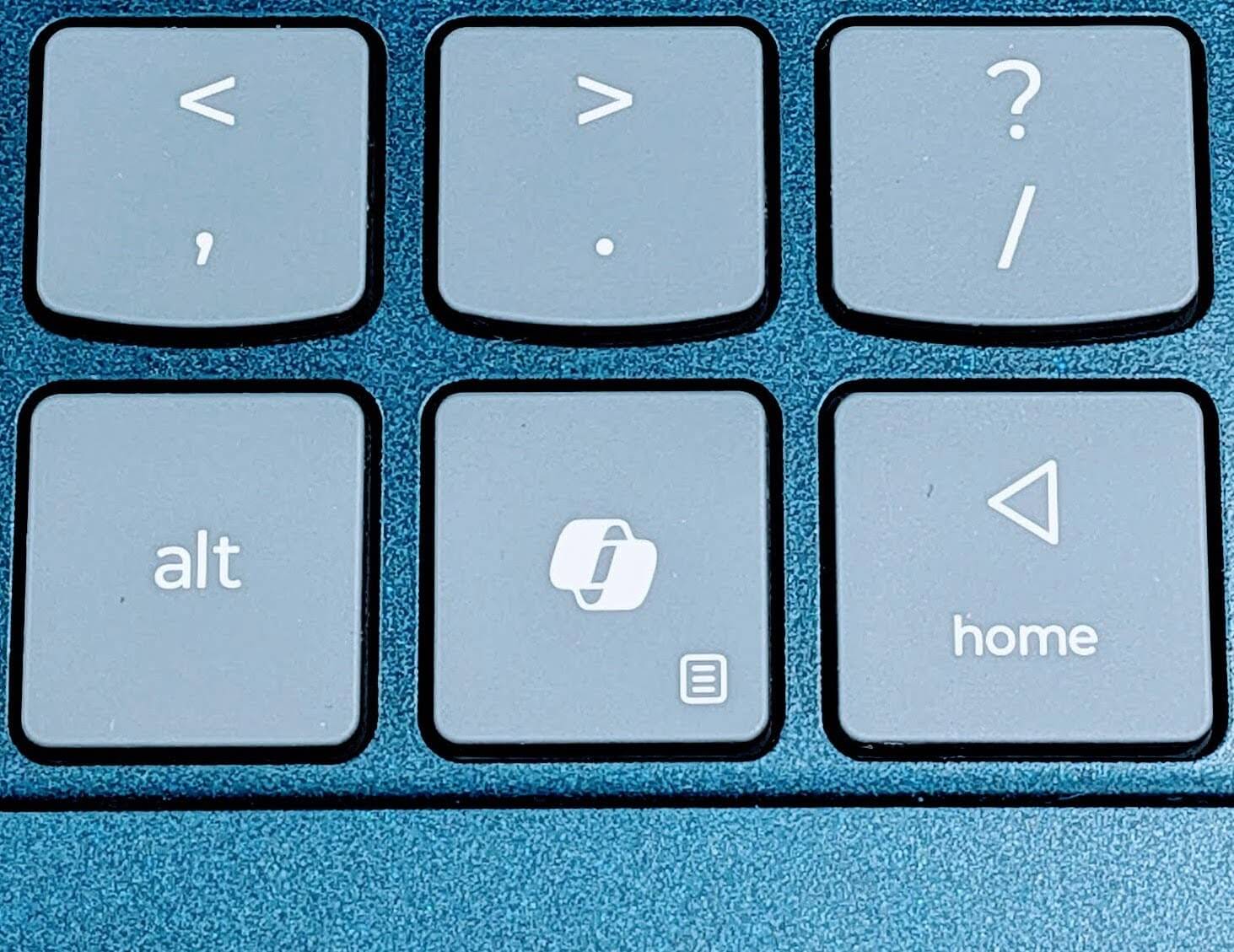
If you’ve looked at new laptops in the last few years, you may have noticed that some have a Copilot key added to the keyboard. Microsoft decided this would be a good way to promote their AI companion and get more people to use it. But if you don’t appreciate this, if you see this as the height of hardware hubris, please know that you can remap the Copilot key. You can reprogram that key to do something other than summon Clippy v2.0.
Via Windows Settings
If you go to the Start Menu -> Settings -> Bluetooth & Devices -> Keyboard, look down the panel for “Customize Copilot key on keyboard”. Across from that is a modest drop-down menu that you can use to change what that key does.
But as of this writing, it is very limited. When I use it, I can only change it from “Copilot” to “Search”. We should check back on this setting in the coming months. Microsoft promises that a future Windows Update will expand on this menu, allowing you to rebind the Copilot key to “Right Ctrl” and “Context Menu”.
Via PowerToys Software
If you don’t want to wait for that update, or if you want to set that key for some other function not offered, Microsoft PowerToys can do the job for you. Inside of the free PowerToys software suite, there is an app called Keyboard Manager. Open that up and look for the “Remap a Key” section. Using that, you can have the Copilot key act as any other key on your keyboard.