Google Chrome is the browser I see most commonly in use on client computers. And I am comfortable with that. Chrome has some solid security features and synchronizes readily with other computers and mobile devices. But there’s one thing it does poorly and has always vexed me. It fails to protect your bookmarks as well as I would like. I’ll describe the problem, as well as detail how you might occasionally manually back up your Chrome bookmarks.
Chrome’s Failing
Let’s suppose that you are a Chrome user and you have saved various bookmarks over the years. Links to your banks, email, shopping sites, etc, all live on your Bookmarks toolbar. They may be organized in folders. And then one day, a mishap occurs. It could be that you clicked something wrong, or the cat walked on your keyboard in just the right way. Afterwards, some of your bookmarks are gone, deleted by mistake.
You might think that they can be easily restored, but that’s not the case. There is no Recycle Bin to fish those bookmarks out of. There is no option on Chrome’s Settings menu to restore them from a previous date. Whatever happens to your set of Chrome bookmarks immediately synchronizes to the cloud, so your deletion happens to what is saved in your Google account.
There’s only one way to restore Chrome bookmarks after a mistake occurs, and it stinks. It’s lousy because it is difficult, non-intuitive and extremely time-sensitive. I’ll tell you how it’s done but then I’ll also describe why it probably won’t help you much.
Google’s Accepted Method for Restoring Bookmarks
- Close all open Google Chrome windows
- Open File Explorer and travel to
- C:\Users\USERNAME\AppData\Local\Google\Chrome\User Data\Default
- Find the file named Bookmarks and rename it to OLDBookmarks
- Find the file named Bookmarks.bak and rename it to Bookmarks
- Reopen Google Chrome and inspect your Bookmarks
Again, I would not expect many people to be comfortable with this process. But even if you can do this, it often doesn’t help. Google Chrome keeps only one backup of your bookmarks, and it overwrites that backup frequently, whenever the computer reboots or Chrome restarts/updates or for reasons I cannot predict. That means that by the time you discover any loss of bookmarks, Chrome may have replaced your backup with a copy that is also missing what you need.
It also doesn’t help that the Chrome bookmarks data is stored way down deep in the AppData folder. That location is typically skipped by your backup programs (OneDrive, File History, etc.).
How to Manually Backup Chrome’s Bookmarks
If you have a wealth of bookmarks and don’t want to lose them, backup them up yourself:
- Open Google Chrome
- Click the 3-dots button in the upper-right corner, come down to Bookmarks and Lists, and then click Open Books Manager
- In the upper-right corner of this page, click the new 3-dots button and then choose Export Bookmarks
- Using the window that appears, choose a location for your Bookmarks file. You may select Documents or any external drive — whatever you like! You may also accept the suggest file name or change that to something more meaningful, and then click the Save button to finish
That HTML backup file will serve as a copy of all of your bookmarks and their folders. It can be used as a restore file down the road, and it can also import your bookmarks into another browser, if you ever decide to try out something new.
Final Commentary
I’m calling out Chrome in this post, but all of this applies to many different browsers. Did you know that most browsers are now built on the same engine as Chrome? That means that Microsoft Edge, Opera, Brave, Vivaldi… all exhibit this lack. If you use one of those browsers, factor in this info and consider manually backing up your Bookmarks (or Favorites) to an HTML file that you control.
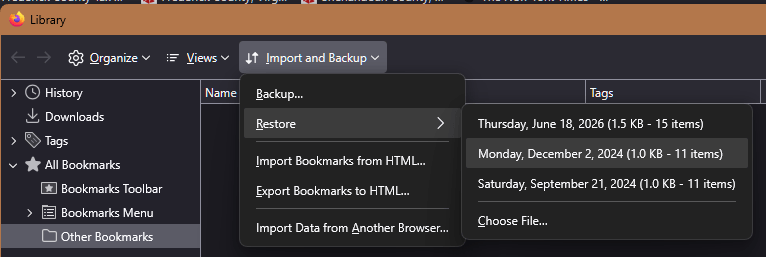
The big exception here is Mozilla Firefox. Firefox is cut from a different cloth and does a great job of safeguarding your bookmarks. Mozilla sets their browser to make a new and separate backup of your bookmarks, roughly once a day. It happens silently in the background, and if you ever need to restore from a backup in Firefox, you would:
- Open Firefox
- Click the hamburger button in the upper-right corner, click Bookmarks, and click Manage Bookmarks
- Click Import and Backup, and then click Restore
- Choose any of the dates shown to “roll back time” on your bookmarks