
I’m sorry for the clunky title, but this nasty business is hard to name. The Outlook Reappearing-Scam-Email Hack is really troublesome, and only seems to affect Microsoft-based email addresses (often ending in Outlook/Live/Hotmail.com). And that’s because the hackers are using some unique Microsoft weaknesses with this hijack. I can’t fully explain their techniques yet, but I can tell you what I’ve learned and how you can recover from this attack.
The Symptoms
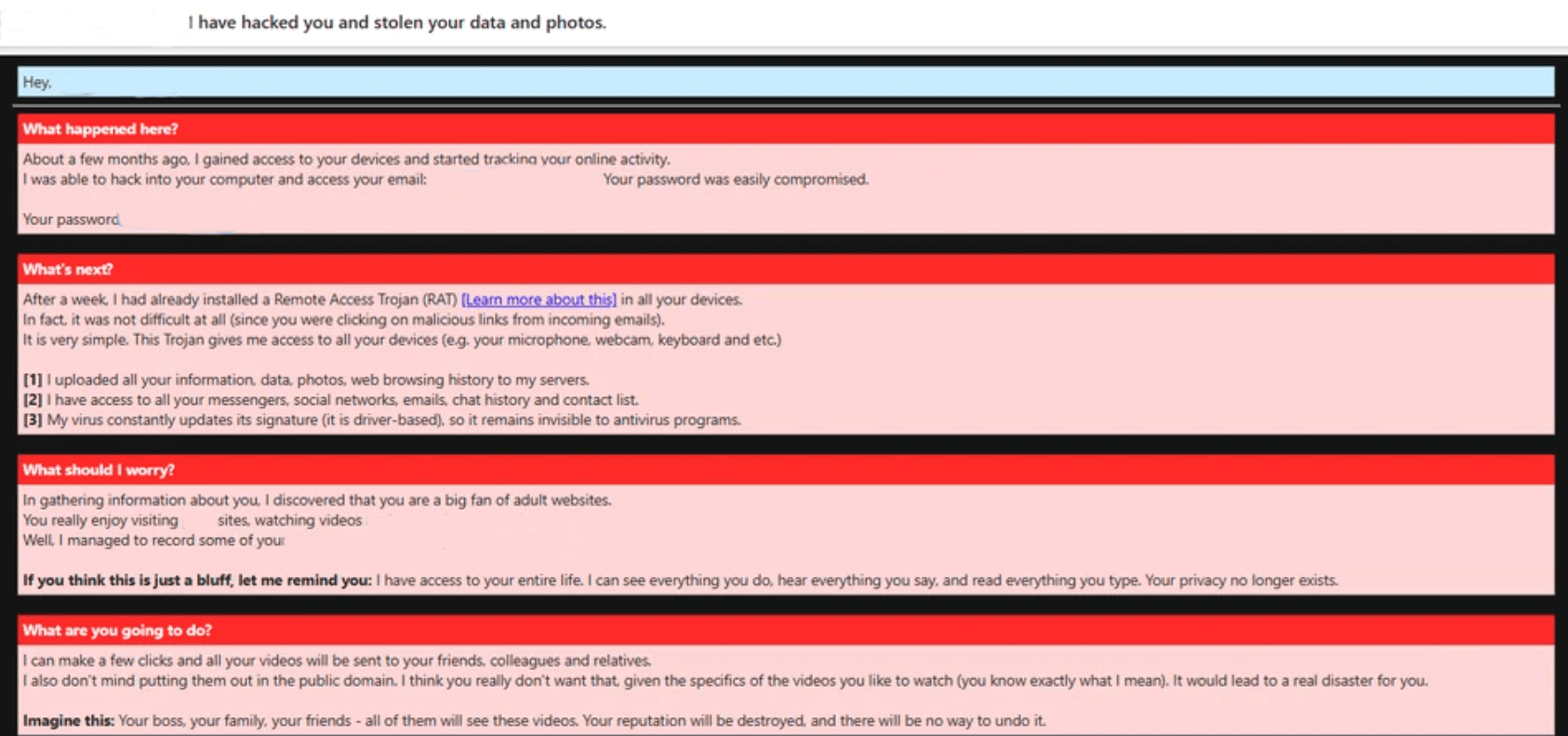
If a bad actor compromises your Microsoft-based email, there’s one main symptom that makes this blog post applicable. A scam extortion email will appear in the inbox. But it will catch your eye, because this dreadful message will have a familiar name at the top. It will look like it was sent by you, or someone you know, or someone company you deal with.
And then you will get that same extortion email, again and again. Some of them may say “Draft” in the subject line, and some may not. But they will appear to come from various names that you know! You can delete these bogus messages, only to see they will quickly grow back.
Other symptoms include:
- New emails immediately overwritten by scammy messages
- Unable to send outbound messages, due to “sending limits”
- Existing inbox messages being slowly replaced by extortion emails showing the original sender’s name
Initial Recovery Steps
Your first steps at securing the email account are standard (and best done from a computer, not a mobile device). Visit https://account.microsoft.com/ and do your best to:
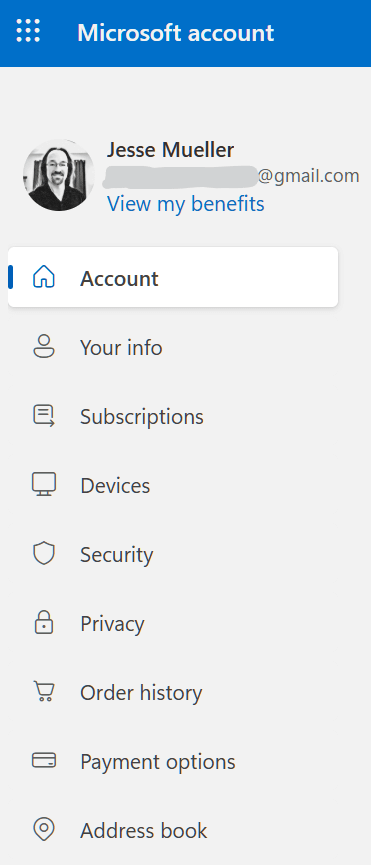
- Reset/change your password
- Click the Security option on the left and then use the Manage how I sign in button.
- Review all of these methods, removing any of the scammer’s info. Add as many “extra ways to prove who you are”, if possible.
- Consider enabling Two-Step Verification under “Additional Security”, if you haven’t already
- Scroll down even further and use the options for Sign Out Everywhere and Reset Windows Hello on all of my Windows Devices
- Click the Devices option on the left and review the listed PCs and other devices.
- Use the Remove Device for any unrecognizable devices
- Under Microsoft Store device management, click Manage and then Unlink any strange devices that are listed
- Under Android & iOS device management, click Manage and then Unlink any strange devices that are listed
- Click the Your Info option on the left and review all of the info shown for accuracy.
- Across from Account info, click the link for Edit Account Info and make sure to remove any foreign email info you find
Email Repair Steps
We’re just getting started! Next go to https://www.outlook.com or https://outlook.live.com/ and get signed in so that you can see your Inbox. Click the Cogwheel icon to the upper-right and then:
- Click Account, then
- Click Automatic Replies, and make sure these are turned Off
- Click Signatures, and remove any foreign entries
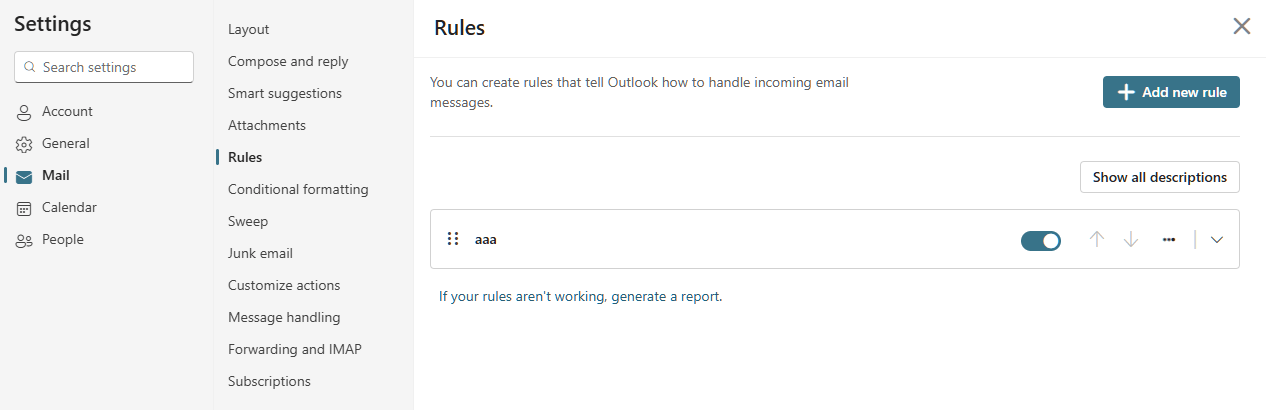
- Click Mail, then
- Click Rules. Delete any unrecognized rules by clicking the 3-dots next to them, and then using the Delete Rule option.
- Click Junk Email and
- Make sure that Incoming Mail Handling is set to Standard
- Review the Blocked Senders and Domains list, and remove any good addresses (including yours!) that you see
- Click Forwarding and IMAP
- Sign in if that button is offered
- Make sure that Forwarding is NOT enabled
- Make sure that the Default From address is set to your email and not some scammer’s
Final Repair Steps
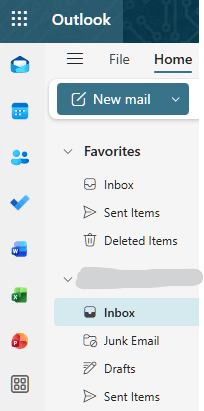
No, we’re still not done, but we’re getting close! After checking the previous settings, you can ‘x’ out of that panel and return to your Outlook inbox on the web. Now, we regard the icons on the left-side.
Click the second blue icon (Calendar). Look down to the My Calendars section and expand it or click Show All. If you see any foreign or unexpected calendars, remove them one by one. Put a checkmark next to any calendar, then click the 3-dots next to it and click Remove.
Click the fourth blue icon (To Do). Click on Tasks and look for anything unfamiliar or related to “Draft Emails”. Remove any and all weird Tasks by right-clicking them, one at a time, and then using the red Delete Task option.
Feel free to review other sections inside of To Do and remove or delete anything that you don’t recognize.
Are We Done Yet? No‽
Some final notes that may make you grimace:
- Your email messages may have been moved out of your inbox and hidden in your Archive or Junk Email folders. Be ready to look around or perform searches to locate missing email
- Some emails may have been deleted and you should visit the Deleted Items folder to see if they are there. It may give you the option to “Recover deleted items”. If you still cannot locate certain messages, they may have been irrevocably removed
- Your email may still behave as if it is still hacked, for 24 – 48 hours after you have performed all of these repairs! The scammer’s ill-effects linger on Microsoft’s servers, even after you’ve done all the right things. You may still see scam emails, inbox replacements and other weird behavior. I know this is potentially scary, but you will have to be patient, revisit your email and keep testing it, to see when it finally returns to normal
- Once your email is back to normal, you may now need to review all of your other accounts. It could be that the hacker used your email to invade your Facebook, bank account or shopping websites. Be prepared to change a lot of other passwords, and call your banks to freeze accounts and/or dispute unauthorized charges
- If your email does not return to normal, your last option would be to reach out to Microsoft Support. This may try your patience beyond its limits, but you may try to call them at the numbers found on this page, or you can start a support chat with them from this website