
This is a fairly rare and niche problem, but I want to document it, as I keep encountering it. This only seems to affect older Dell computers running Windows 10 or 11. The issue is this: Some PCs begin to show that the C:\ Drive is nearly full, despite having a high storage capacity and the users’ habits do not involve saving lots of personal data. I’ve seen this occur on a 7-year-old Dell where the owner simply checks their email once a week! And this storage bloat is often traced to a bug in the Dell SupportAssist Remediation software.
What Is Dell SupportAssist Remediation?
My short answer to that is: I don’t know. I’ve never used it or seen anyone else use it. It appears to be shovelware that was installed at the factory by Dell themselves.
But I guess I can do better than that. Dell SupportAssist Remediation software appears to be similar to Microsoft’s System Restore. It automatically creates and saves “restore points” that contains copies of system files and applications. It may allow for software rollbacks and repairs, and seems to have advanced features that may be more appropriate in business environments. If that’s true, then SA Remediation has a valid purpose, just not so much on home PCs.
How to Tell If Dell SARemediation is Bloated
If your computer is giving you low-storage warnings, or if you’ve just noticed that your available C:\ Drive space is getting low, you can check to see if this Dell app is part of the problem.
One easy tactic is to use a Disk Mapping application, to view how your storage is used. I’ve blogged about this before, and any number of free analysis software will show you a graphic of your drive. As you look over such a disk-map, you would be on the lookout for a folder called “SARemediation”. If you see that folder and it has a large size, then Dell is part of your bloat problem, and you can start to fix it!
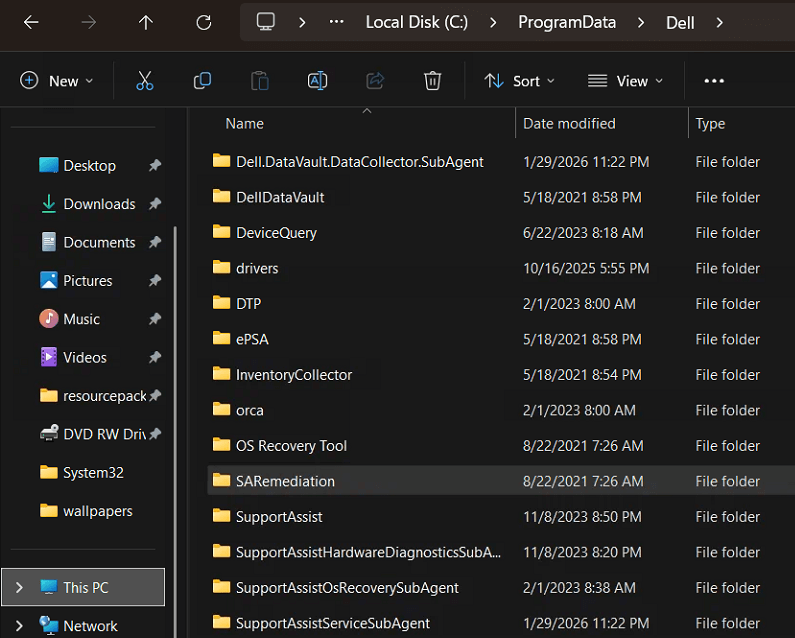
Aside from using extra software, you can manually hunt down the SARemediation folder. Using File/Windows Explorer, you would go to one of these directories:
- C:\Program Files\Dell
- C:\Program Files (x86)\Dell
- C:\ProgramData\Dell
Once you get to those locations, you may right-click on any SARemediation folder found there, and then left-click “Properties”. This will reveal the size of that entire folder.
Getting Rid of the Bloat
You could simply delete the SARemediation folder, but I don’t recommend that. It may refuse you, claiming that the program is currently running. Or you could succeed in deleting it, only to create other software error messages, later on. The safest option is to just uninstall the Dell software.
- Go to Start -> Settings -> Apps -> Installed Apps
- Go to Start -> Control Panel -> Programs and Features
- Press WIN + R and type in appwiz.cpl
And so on, however you want to get to your list of installed software, you go there and look for the Dell entries. Start by selecting and uninstalling the Dell SupportAssist Remediation line item.
If SARemediation is bloated, this uninstall could take a long time. It will (silently) spend a while, counting up and checking the bloated files before removing them. Be patient!
There will probably be several other Dell-related items on your list of programs. They are all optional, and you may leave them alone or uninstall them. And you are not burning any bridges by removing these apps. They can all be freely re-downloaded and reinstalled from the Dell Downloads & Drivers website.