
A lot of advanced Windows tweaks require the use of the Group Policy Editor tool. But Microsoft doesn’t include that in Home editions of Windows (which is most store-bought PCs these days). You don’t have to spend money on a Windows Upgrade. Here’s how to add the Group Policy Editor to any Windows computer for free:
Script, Please!
We’ll start with this code:
@echo off
pushd "%~dp0"

dir /b %SystemRoot%\servicing\Packages\Microsoft-Windows-GroupPolicy-ClientExtensions-Package~3.mum >List.txt dir /b %SystemRoot%\servicing\Packages\Microsoft-Windows-GroupPolicy-ClientTools-Package~3.mum >>List.txt

for /f %%i in ('findstr /i . List.txt 2^>nul') do dism /online /norestart /add-package:"%SystemRoot%\servicing\Packages\%%i"
pause
Copy and paste that into a Notepad window. Then, click File and choose Save As. Save your file with the name of GPEDIT.BAT (or anything ending in “.bat”), wherever you like.
To run that script, close Notepad and locate the file. Right-click your .bat file and choose Run as Administrator. The script will begin to run in a DOS-prompt window:
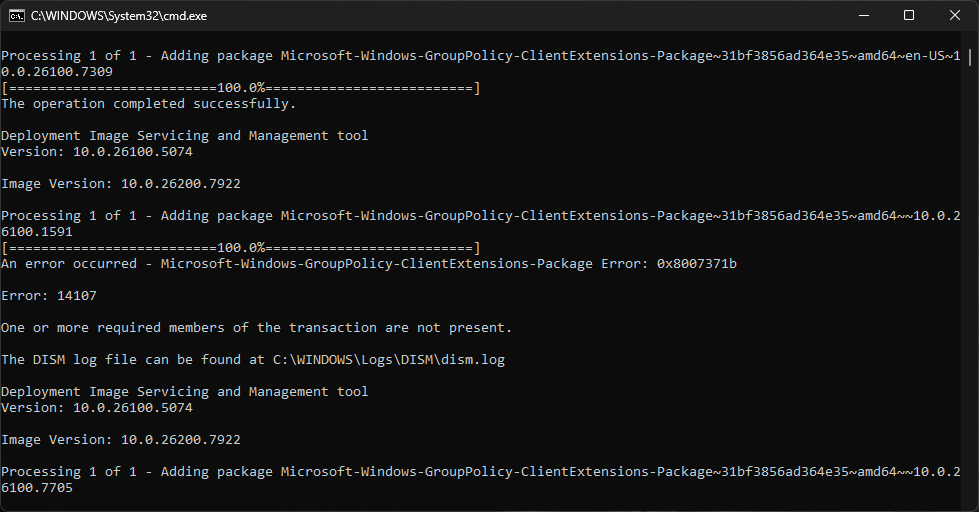
This process can go quickly or take a long time (more than an hour!). Be patient with it and eventually it should say “Press any key to continue…” at the bottom. Then you can press a key to dismiss the DOS prompt.
Accessing this Tool
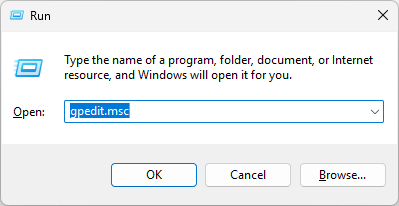
Open a Run prompt (WIN + R) and type in “gpedit.msc” . Click OK and you will have your Group Policy Editor!
Alternatively, you can make a desktop shortcut. Right-click on your wallpaper and choose New -> Shortcut. Type “gpedit.msc” and click Next. Name your shortcut as you wish and click Finish.